How do I verify receipt totals before importing them into QuickBooks or Xero?
By Kris, who builds Pic2Sheet. Published November 12, 2026.
The reliable way to verify receipt totals before importing them into QuickBooks or Xero is to re-add each total from its line items and compare it with the printed total — a misread digit, a missed line, or a dropped tax row all surface as a difference. Pic2Sheet runs that check automatically on every conversion: each total is re-summed from the extracted line items, and any receipt whose numbers disagree is flagged in a Review column instead of flowing silently into your import file. When exactly one correction makes the figures agree, the output points to it. This matters most at import time, because QuickBooks and Xero will book a wrong total without blinking; the error only shows up later, at reconciliation, when the bank feed disagrees. Below: what gets checked, what the flags mean, and how to prove the check works on a public sample before you trust it with client receipts.
Why the check belongs before the import, not after
An import file is a promise your accounting software does not audit. QuickBooks Online and Xero read the amount on each CSV row and book it; neither platform knows what the paper receipt said. So a total that was misread at conversion time — a 3 read as an 8, a line item skipped, tax folded in twice — becomes a booked expense with a straight face. You find it at month-end reconciliation, if you find it at all, and fixing it then means editing entries that may already sit inside a report you sent the client. The cheap moment to catch it is while the numbers are still rows in a spreadsheet, one flagged receipt at a time. That is the stage this page is about: the last check before the numbers become accounting records.
What gets checked, receipt by receipt
Line items are re-added. Every extracted item row is summed and compared with the receipt's printed total, subtotal plus tax included — not just OCR'd and trusted.
Mismatches are flagged, not smoothed over. A receipt whose numbers disagree is marked in a Review column in the output file, so it stops for a human look instead of importing quietly.
A unique fix is pointed to. When exactly one correction makes the figures agree — one digit, one missed line — the output indicates it rather than guessing silently.
Multi-page invoices are checked whole. Pages marked Page X of Y, or pages sharing an invoice number, are merged into one record first; the merged items are then verified against the invoice total as a single document.
The import file carries the checked numbers. The QuickBooks- and Xero-format CSV exports put the verified total on each row — one row per receipt, with the receipt or invoice number as the reference. There is no direct connection to either platform: you upload the file yourself.
Prove it on the public sample first
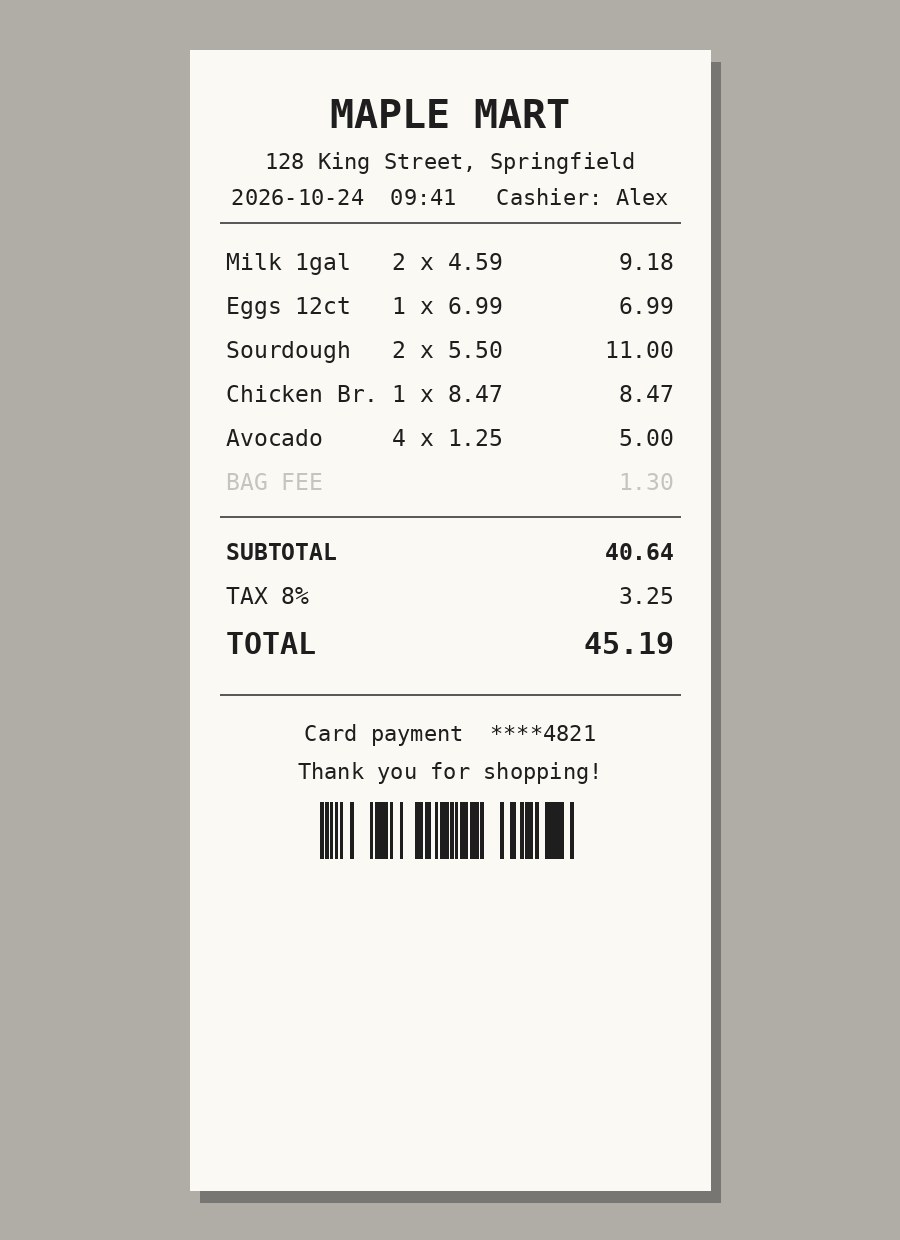
You do not have to take any of this on faith. The homepage publishes a sample receipt photo and the Excel file Pic2Sheet produced from it. The receipt's printed total is $1.30 more than its subtotal plus tax — an easy error to wave through — and the output's Review column flags exactly why: a faint BAG FEE line of $1.30 that a quick glance misses. Download both files, re-add the Amount column yourself, and you will land on the same discrepancy the sheet reports. Then, if you like, spend one of the 20 free credits running the same photo and compare the two outputs. (The sample is fictional data; your own uploads and results are deleted automatically 7 days after processing.)
What verification cannot do
The check proves the spreadsheet agrees with the paper. It cannot prove the paper is genuine, and it cannot rescue a photo so blurry that a whole line never became data — a line that was never extracted cannot disagree with anything, although in practice a missing line usually breaks the sum, which is what the flag catches. A printed total that is simply wrong, with line items that happen to add up to it, will also pass an arithmetic check. So treat flags as a sorting tool: they reliably separate the receipts that need your eyes from the ones that do not. The flagged minority still deserves those eyes before anything is imported.
Check before you import: 20 free credits on sign-up, no credit card (1 credit = 1 photo or 1 PDF page). Totals verified against line items on every conversion, mismatches flagged for review, failed conversions and suspected duplicates refunded automatically.
Why verify receipt totals before importing them into QuickBooks or Xero?
Because the import believes your file. QuickBooks Online and Xero book whatever total the CSV row carries, so a misread digit or a missed line becomes a wrong expense that only surfaces weeks later, when the bank feed disagrees at reconciliation. Checking totals while they are still spreadsheet rows takes seconds; fixing booked entries takes much longer.
How does Pic2Sheet check a receipt total?
Every total is re-added from its extracted line items and compared with the printed total — subtotal plus tax included. If the numbers disagree, the receipt is flagged in a Review column in the output. When exactly one correction makes everything agree, the output points to that correction instead of guessing silently.
What should I do with a flagged receipt?
Look at it before importing. Each receipt keeps its own sheet next to the merged Combined sheet, so you can compare the flagged row against the receipt itself, fix the figure, or leave that receipt out of the import. Flagged rows are the small minority — the point is that they stop instead of flowing through.
Can I test the verification before trusting it with client receipts?
Yes. The homepage publishes a sample receipt photo and the Excel file produced from it. The printed total is $1.30 more than the subtotal plus tax, and the Review column flags why — a faint BAG FEE line of $1.30. Re-add the Amount column yourself to reproduce the catch, or run the same photo with the 20 free credits.
Do the QuickBooks and Xero files carry the verified totals?
Yes. The QuickBooks- and Xero-format CSV exports use the verified total as the amount, one row per receipt, with the receipt or invoice number as the reference. There is no direct connection to either platform — Pic2Sheet produces the file and you upload it yourself, so your accounting credentials are never shared.
What about a multi-page invoice — is the total checked as a whole?
Yes. Pages marked Page X of Y, and pages sharing the same invoice number, are merged into one record first; the merged line items are then checked against the invoice's printed total as a single document, not page by page.
What does the check not catch?
It proves the spreadsheet agrees with the paper, not that the paper is genuine. If a printed total is wrong but its line items happen to add up to it, arithmetic alone will pass it — and a photo so blurry that a whole line is invisible cannot be checked against a total it never reached. Flags catch disagreements; they do not replace looking at the flagged rows.
What happens if a conversion fails, or I upload the same receipt twice?
A failed conversion refunds its credits automatically and in full. Receipts the system suspects are duplicates inside one batch are refunded automatically too, so a double upload does not cost you twice — and because every receipt keeps its own sheet, duplicates are easy to spot before import.